
View the desktop article instead.
Connecting your BoxCommerce account to your Pinterest account is simple. Connecting your account to your Pinterest boards gives you full access to our marketing tools and allows you to effectively market your business using our social posting tools. No need for additional paid third-party software to achieve this.
Before you can start creating and publishing your posts directly to social media, you need to first link at least one of your social media accounts to your BoxCommerce store. This is done by going to the marketing settings section from the menu on the left, you will see the below.
How to connect your BoxCommerce account to your Pinterest boards.
Tap on the ‘Marketing’ icon in the footer and then tap on ‘Settings’. This will present you with a marketing settings page where you will be able to turn on/off the link between your BoxCommerce account to your Pinterest account.
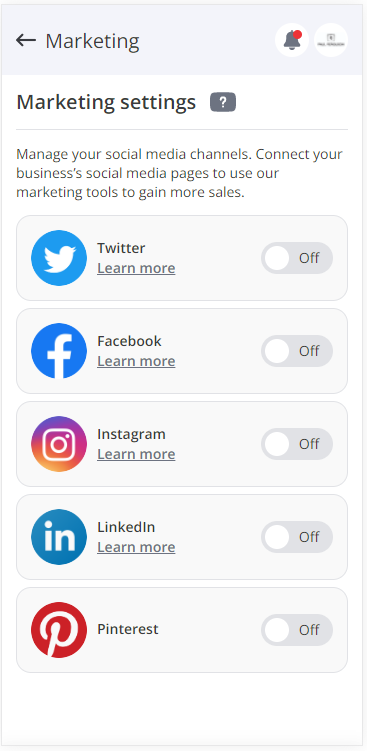
Switch on the toggle on the right of Pinterest, this will redirect you to Pinterest so you can authenticate access to your account. Once you've logged into your account, you will see the screen, as shown below. Click on the Give access button.
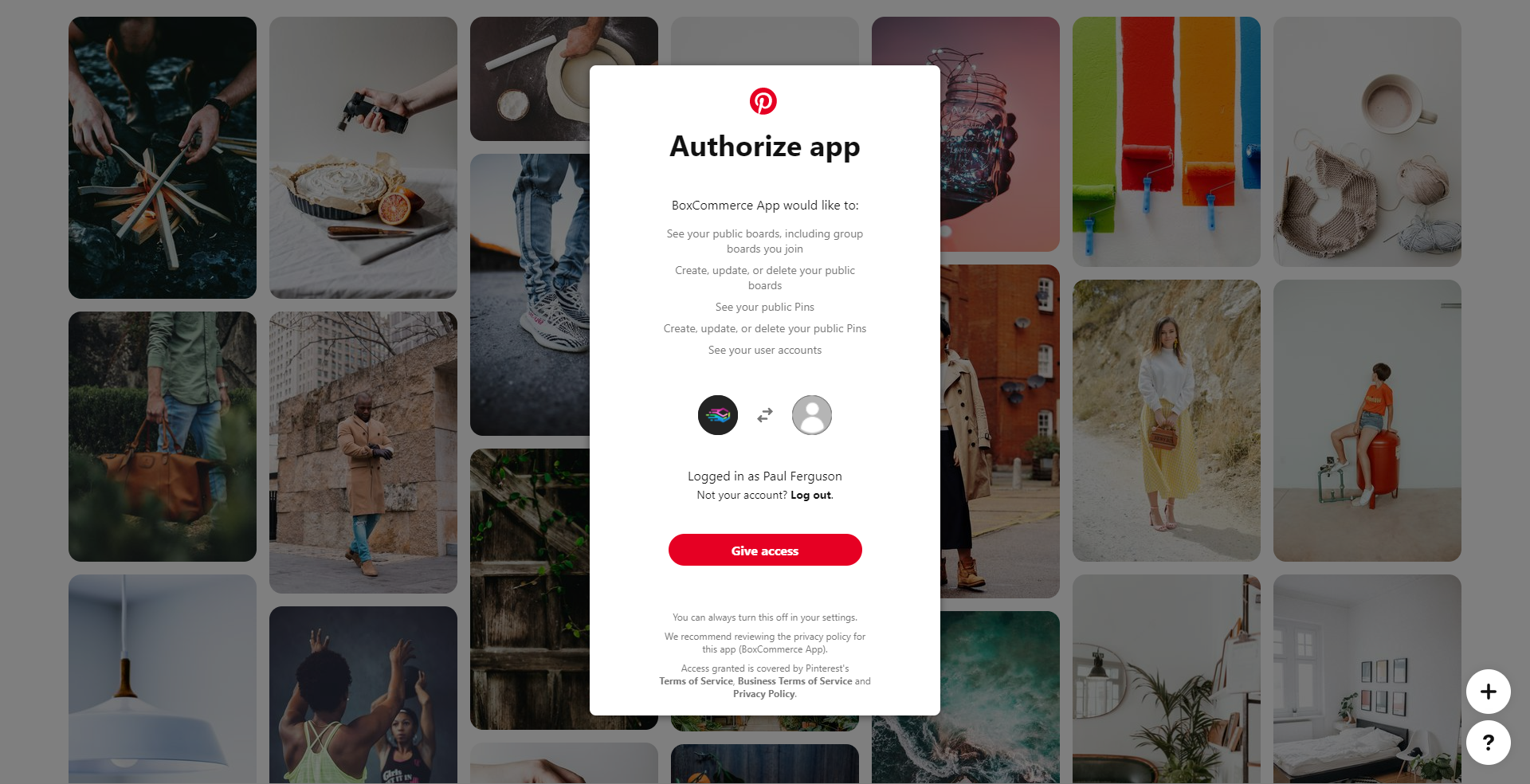
Once you have approved access by clicking on "Give access", you will then be redirected back to your BoxCommerce account.
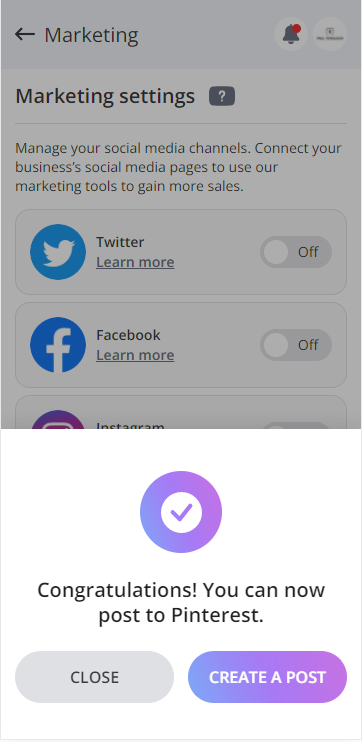
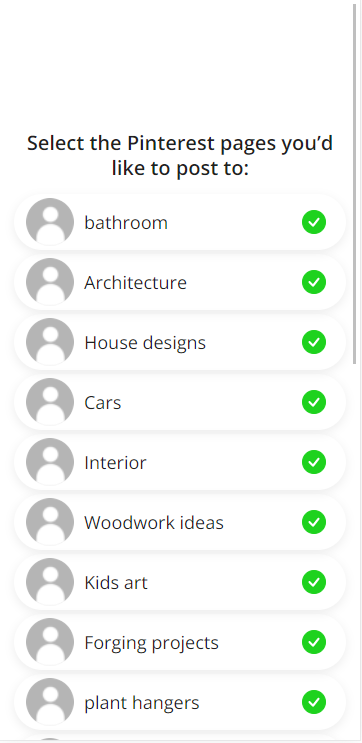
Before you can post to Pinterest you will need to select which board you would like to post to. You can also manage which boards you would like to enable and disable for posting purposes. To do this tap on the settings link. Simply deselect the boards which you are not likely to post to.
Tip: Remember to come back to settings if you are not seeing your board in the "New posts" tab. When your Pinterest account is linked you can select and deselect boards whenever you want.
Comments
0 comments
Please sign in to leave a comment.